This guide shows the actual Free1APK PDF Page Numberer using a project-owned, two-page demonstration PDF. The working tool is embedded below. Your PDF is processed locally in your browser; keep the original document.
Number PDF Pages: Verified Step-by-Step Walkthrough
Step 1 Open the PDF Page Numberer
Open the interactive tool below or its standalone Free1APK page. It works with one non-password-protected PDF of up to 25 MB and 200 pages.
Step 2 Choose the Original PDF
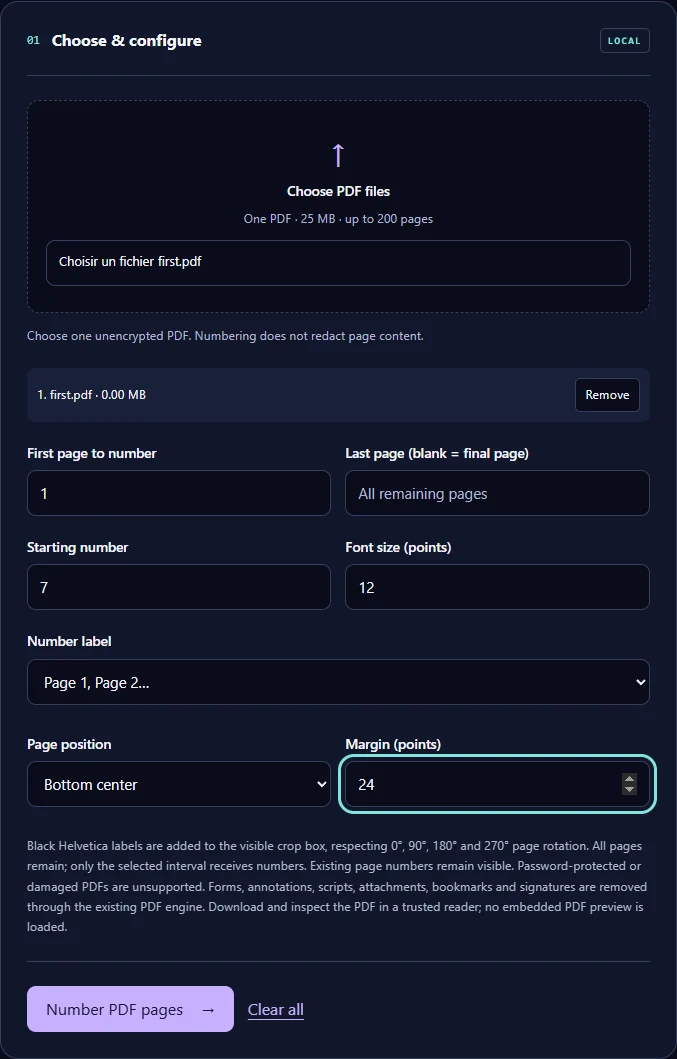
Select the demonstration document (or your own permitted PDF). The two-page tracked example is not a personal document and needs no upload to a remote service.
Step 3 Set Page Interval and Number Style
For this tested example: first page 1, last page blank, starting number 7, Page N style, bottom-center position, 12-point black text and 24-point margin. Blank last page means the final page of this PDF.
Step 4 Generate and Download the PDF
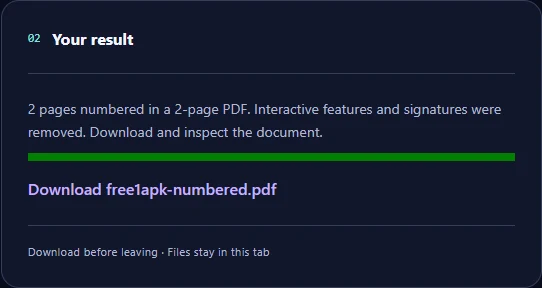
Click Number PDF pages, wait for the result and download free1apk-numbered.pdf. Open the downloaded file in a trusted PDF reader to verify legibility and page ordering.
What the Downloaded PDF Actually Contains
In the recorded run, the original two-page PDF was 1062 bytes and the downloaded result was 1648 bytes. The first page received Page 7 and the second Page 8. These are measurements of this test file only, not a promised output size for other documents.
For reproducibility, the verified downloaded PDF had SHA-256 67ba621eed033ac0c58e88fa8f45dab2e060f36e9231995df02e703b8f9344bd. Its PDF page content streams were checked for both drawn labels, not just the filename or the on-screen success message.
Important PDF Limitations and Safety Checks
The tool does not remove existing page numbers and does not redact visible information. The output removes interactive elements such as form fields, annotations, embedded attachments, scripts, bookmarks and digital signatures. Encrypted or damaged PDFs are unsupported. Inspect the result before sharing it or relying on a signature.
Frequently Asked Questions
Can numbering start at 7? Yes: set Starting number to 7. Can I number only certain pages? Yes: choose the first and last page. Are pre-existing numbers replaced? No; new labels are added. Does this preserve digital signatures or interactive forms? No. Does a smaller PDF mean content was redacted? No.
Try the Actual Interactive PDF Tool
Use the original Free1APK PDF Page Numberer embedded below. Select an unencrypted PDF, set your desired label position, download the result, and inspect every page before sharing.