Learn to convert a still image between JPG, PNG and WebP in your browser. Choose a supported output format, inspect the result, and keep the original file. Encoding can increase as well as reduce file size.
Step-by-Step Instructions
Step 1 Choose a Real Image
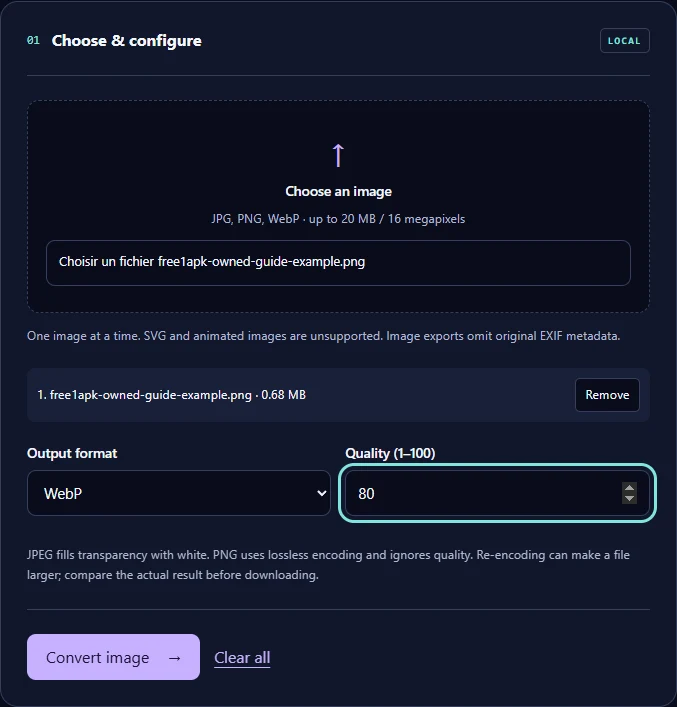
Open the linked tool and select a still JPG, PNG or WebP image. This tool operates in your browser, one image at a time. Use a file you own or have permission to process.
Step 2 Choose the Output Format
Select WebP in Output format and set Quality (1–100) to 80. JPEG replaces transparent areas with white. PNG is lossless and ignores the quality control. Keep the original when comparing formats.
Step 3 Process the Image
Run the tool and wait for the output panel. If processing fails, check file type, browser support and source-image limits. No remote processing API is necessary.
Actual Before and After
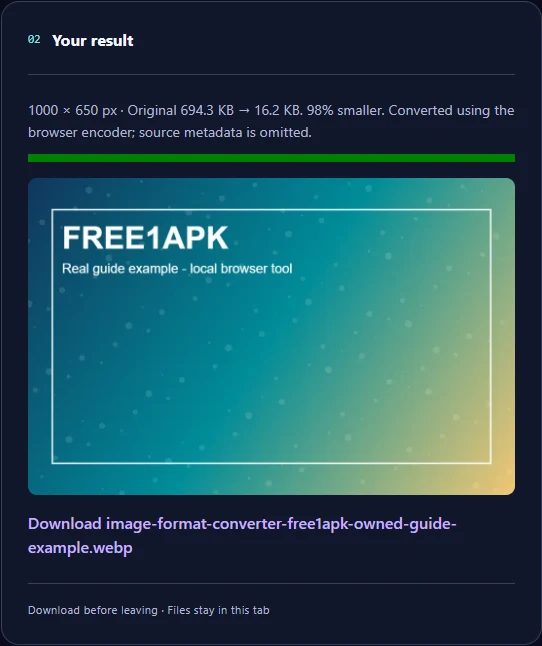
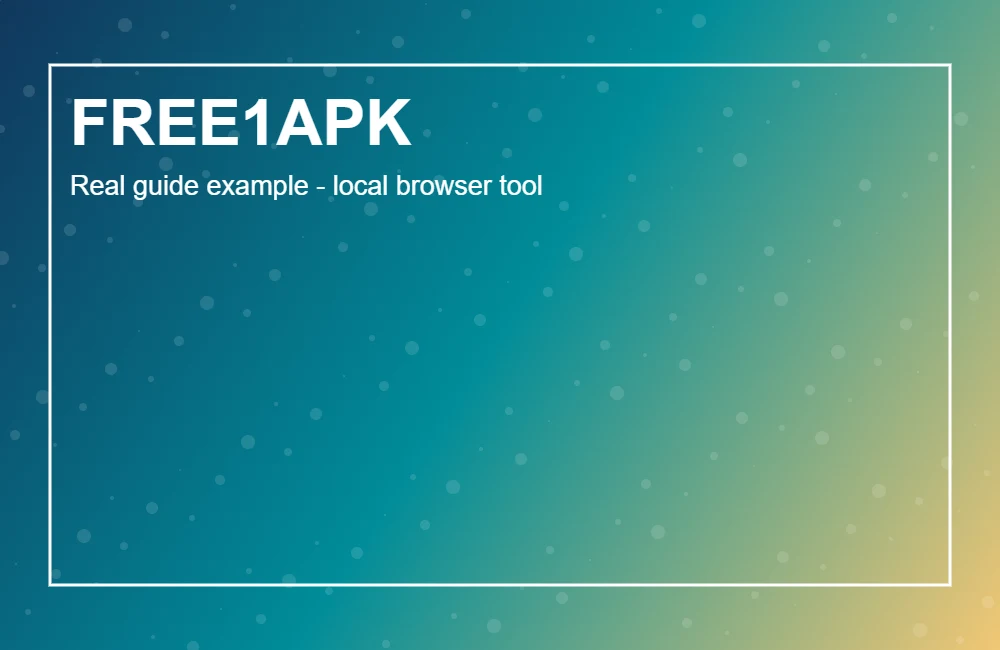
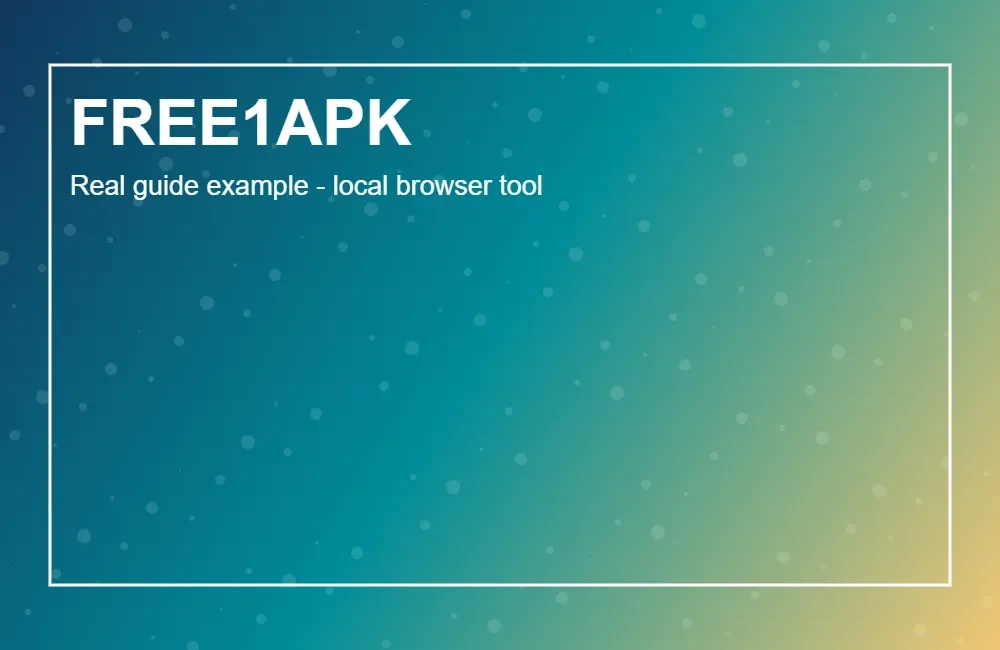
In this real Chrome example, the exported WebP measured 1000 by 650 pixels and changed file size from 694.3 KB to 16.2 KB. Your image may produce different results.
How to Check Quality
Compare gradients, colors, transparent areas and sharp text. WebP and JPEG can lose detail when encoded at lower quality. Lossless PNG is useful for graphics and transparency but may produce larger files.
Frequently Asked Questions
Will WebP always be smaller? No; re-encoding may increase the file size. Does this change dimensions? The converter preserves decoded image dimensions. Can JPEG preserve transparency? No; this exporter uses a white background.
Try the Working Tool
Use the interactive Free1APK tool embedded below. Process your own JPG, PNG or WebP image and inspect the downloaded file. You do not need an account or a paid external image-processing API.