This visual walkthrough demonstrates how to keep an exact pixel rectangle without resizing using Free1APK in your own browser. It uses an original, browser-generated demonstration graphic rather than a stock photograph. Keep the original image and inspect the real output.
Step-by-Step Walkthrough
Step 1 Choose a Still Image
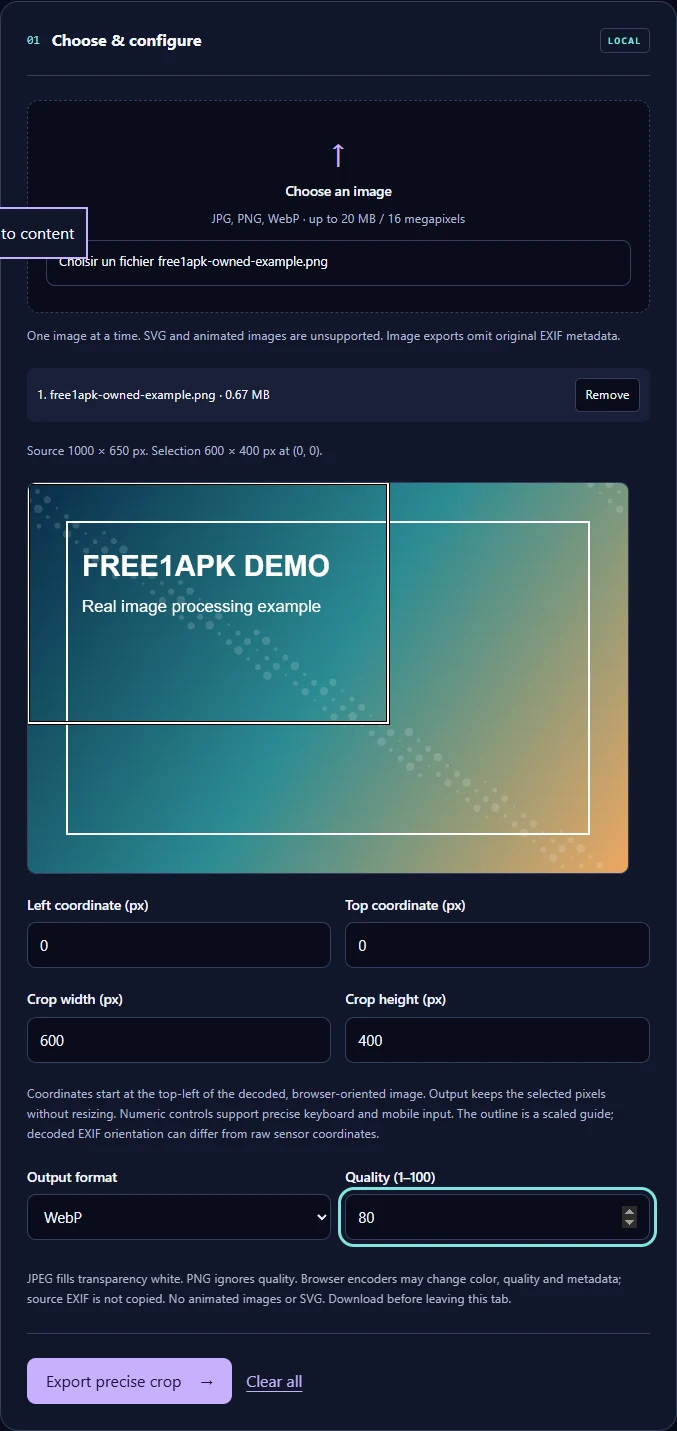
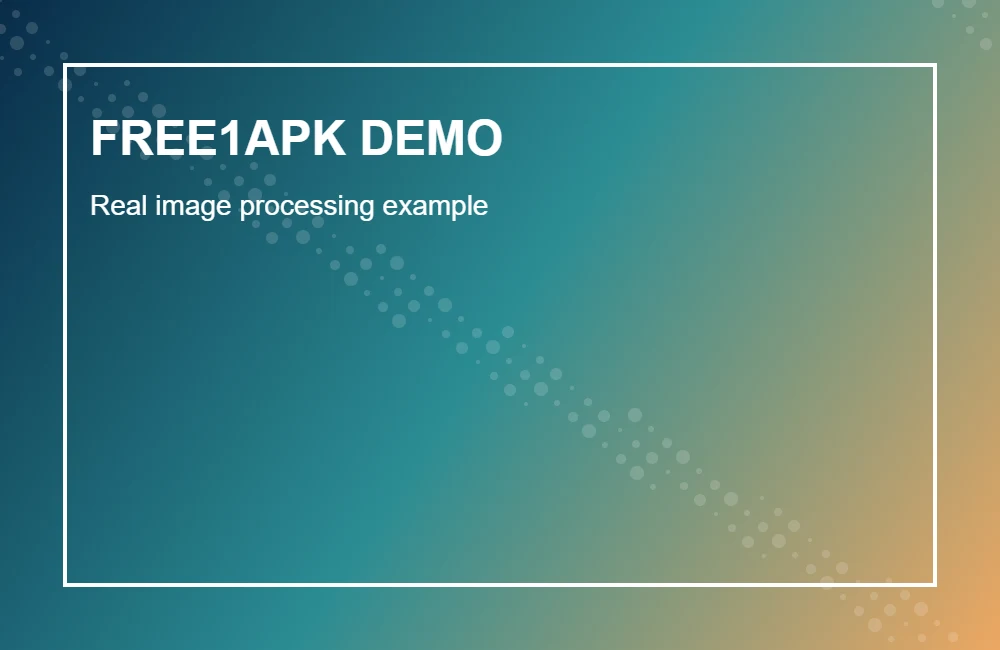
Open the working tool below and select a JPG, PNG or WebP image. Animated images and SVG are unsupported. For this recorded example, the original test image is 1000 by 650 pixels.
Step 2 Configure the Tool
Enter left coordinate 0, top coordinate 0, crop width 600, and crop height 400 to select the upper-left rectangle shown in the screenshots. Choose WebP at quality 80, then select Export precise crop.
Step 3 Run the Tool and Download
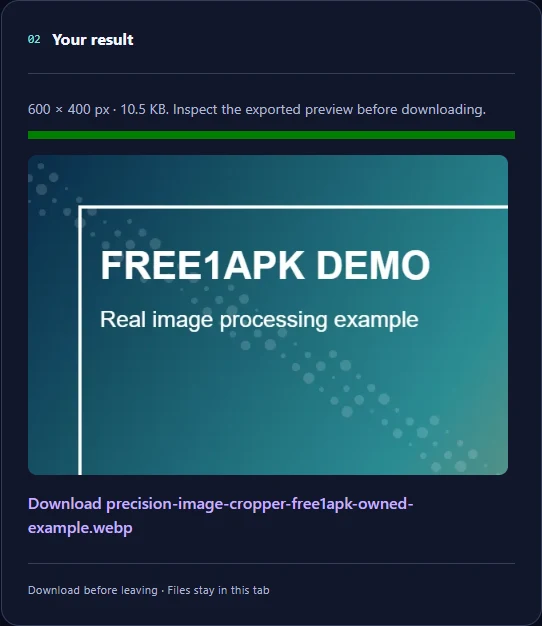
Use the tool action button, wait until the output is ready, then download the actual generated file. Confirm the file opens correctly before discarding an original.
What Changed in the Real Example?
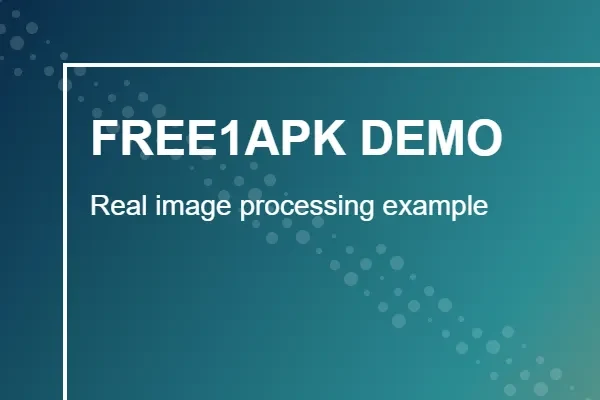
The original recorded image was 689.8 KB. The downloaded output was 10.5 KB and 600 by 400 pixels. These are measured results of this one demonstration, not guaranteed savings or quality for other images.
Important Limits and Tradeoffs
The image loses content outside the selected rectangle. Coordinates use the decoded, browser-oriented image, not necessarily the raw camera sensor orientation. Cropping does not enlarge or resize the selected region.
Frequently Asked Questions
Where is coordinate 0,0? At the top-left of the decoded image. Can I crop beyond the image boundaries? No. Does crop width change the image scale? No; output dimensions equal the chosen crop rectangle.
Try the Interactive Tool
The real Free1APK tool below is interactive. Use your own allowed image, configure the controls, process it locally, and inspect the downloaded result before using it on a website or social post.