This walkthrough shows the real Free1APK url-component-codec tool using an original public-safe demonstration string. The interactive tool is embedded below. No private text or user document was used.
Step-by-Step Browser Walkthrough
Step 1 Open the Local Tool
Find the tool embedded at the end of the article or open its standalone Free1APK page. Processing happens in your browser, not in a paid API.
Step 2 Enter Exact Settings
Choose Encode value and URL component: space becomes %20. Paste the sample value into the text field. This operation encodes one component, not an entire URL.
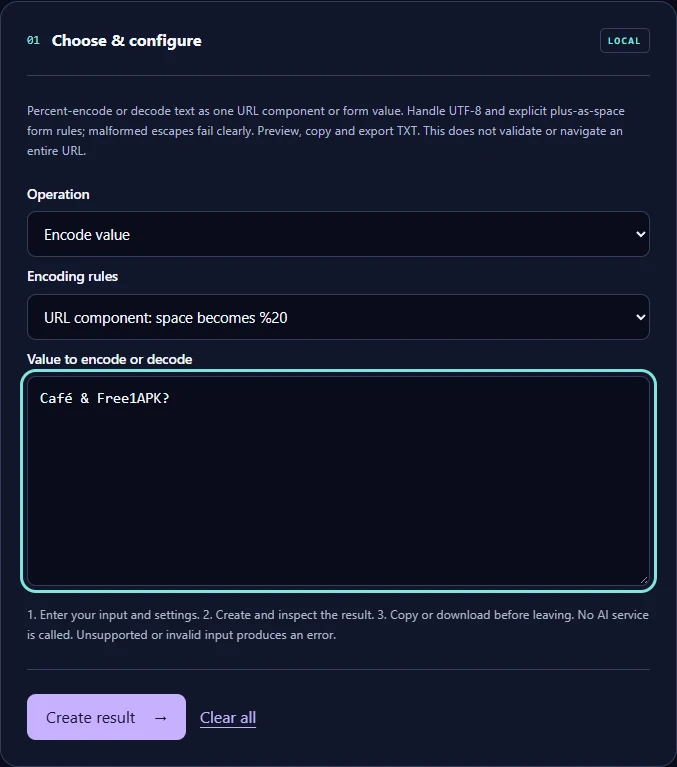
Step 3 Run and Download TXT
Select Create result, inspect the on-screen result and download the UTF-8 TXT file. The recorded Chrome download was checked against the expected exact output bytes.
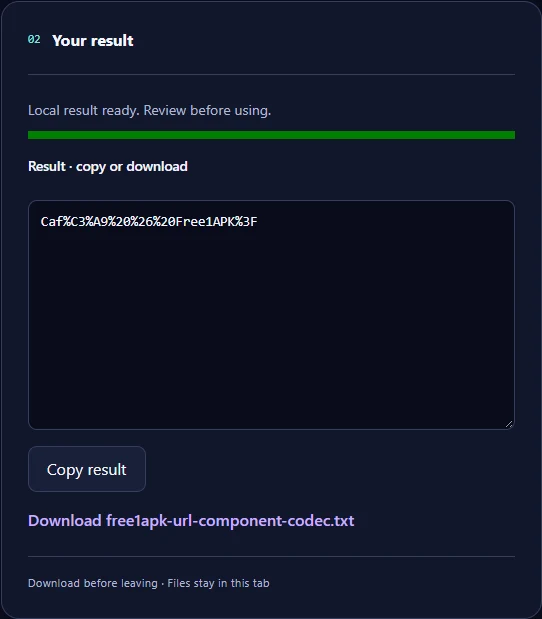
Measured Input and Real Download
Recorded input (17 UTF-8 bytes): Café & Free1APK?
Exact encoded TXT output (29 UTF-8 bytes): Caf%C3%A9%20%26%20Free1APK%3F
The downloaded result was independently checked byte-for-byte in local Chrome; SHA-256: 3654a0d20b69e55cd9cdc83ececfa07404d1e6e909b9818634b077e1021766c7. This checksum documents only this one owned test sample, not all possible inputs.
What This Conversion Means—and Does Not Mean
The accented character becomes UTF-8 percent-encoded bytes; spaces, ampersand and question mark are encoded as data rather than being treated as URL delimiters. Form encoding uses + for spaces instead. Do not percent-encode an entire existing URL with this mode.
Frequently Asked Questions
Should I paste an entire URL? No; encode a single query value or path segment as appropriate. Why does a space become %20? That is component encoding; form values can use + instead. What about malformed percent escapes? Decoding invalid sequences produces an error rather than silently fixing them.
Try the Actual Interactive Tool
Use the embedded Free1APK tool below to repeat the steps with your own allowed text. Confirm character handling and downloaded output before use.