This visual walkthrough demonstrates how to fit an image into a square social post canvas using Free1APK in your own browser. It uses an original, browser-generated demonstration graphic rather than a stock photograph. Keep the original image and inspect the real output.
Step-by-Step Walkthrough
Step 1 Choose a Still Image
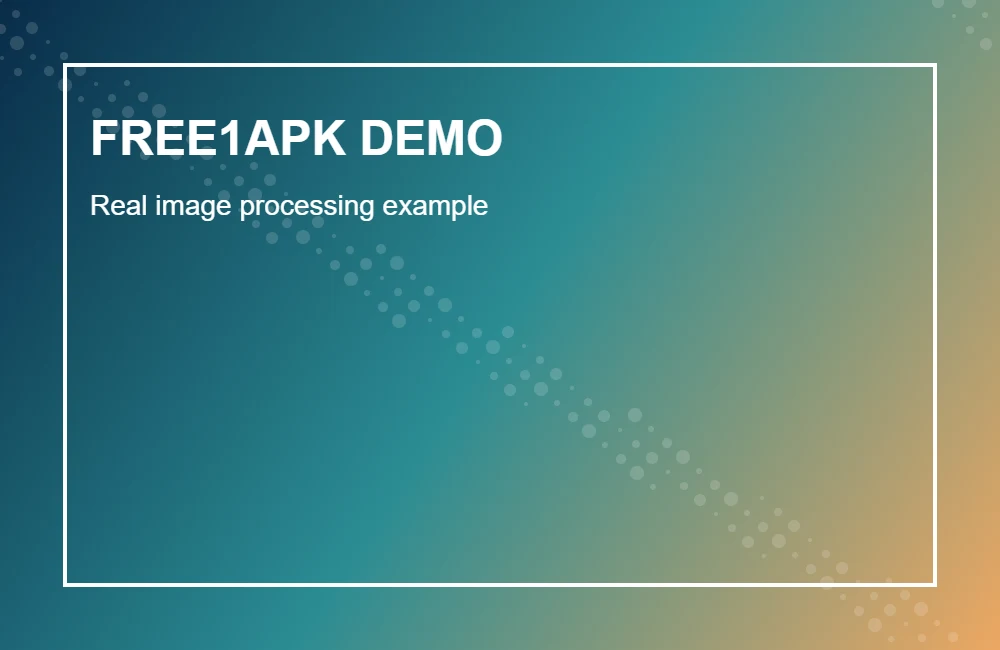
Open the working tool below and select a JPG, PNG or WebP image. Animated images and SVG are unsupported. For this recorded example, the original test image is 1000 by 650 pixels.
Step 2 Configure the Tool
Select Square post, choose Pad to keep the full source image, and set Background to white. Export as WebP at quality 80. The current social platform limits are not verified by this tool.
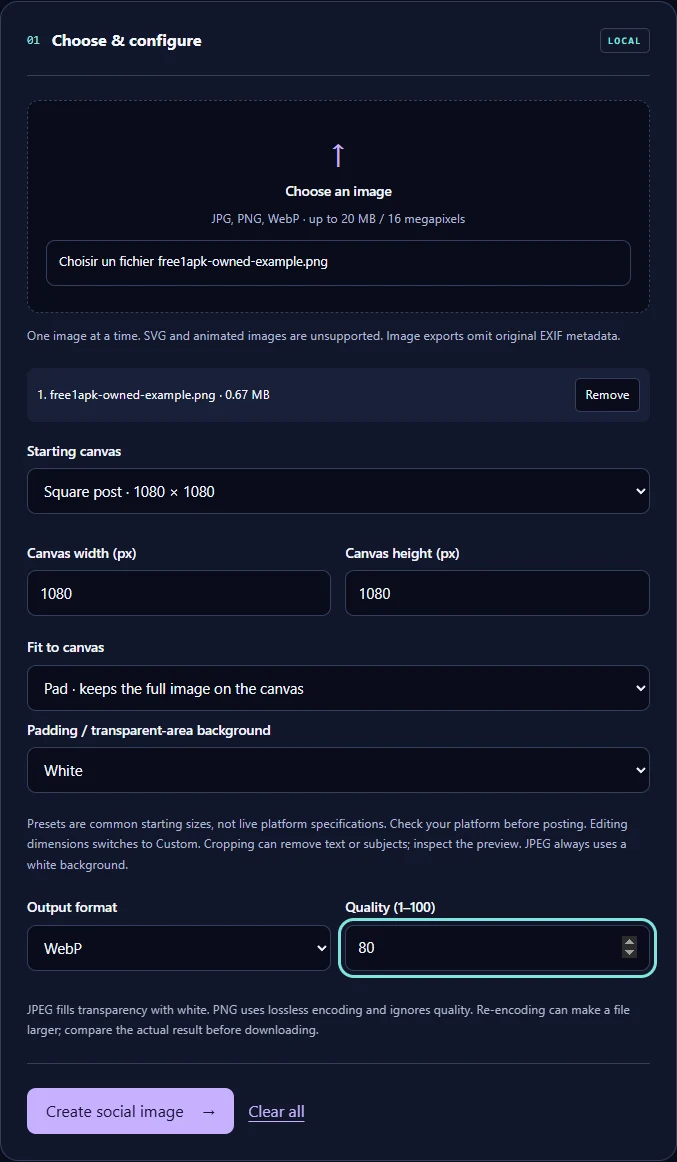
Step 3 Run the Tool and Download
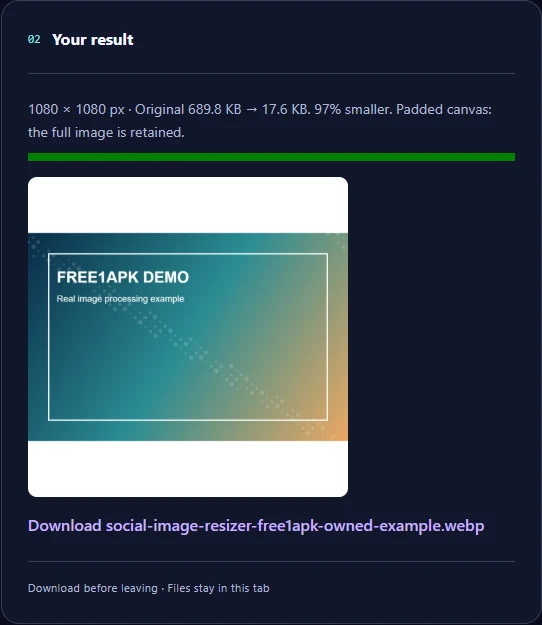
Use the tool action button, wait until the output is ready, then download the actual generated file. Confirm the file opens correctly before discarding an original.
What Changed in the Real Example?
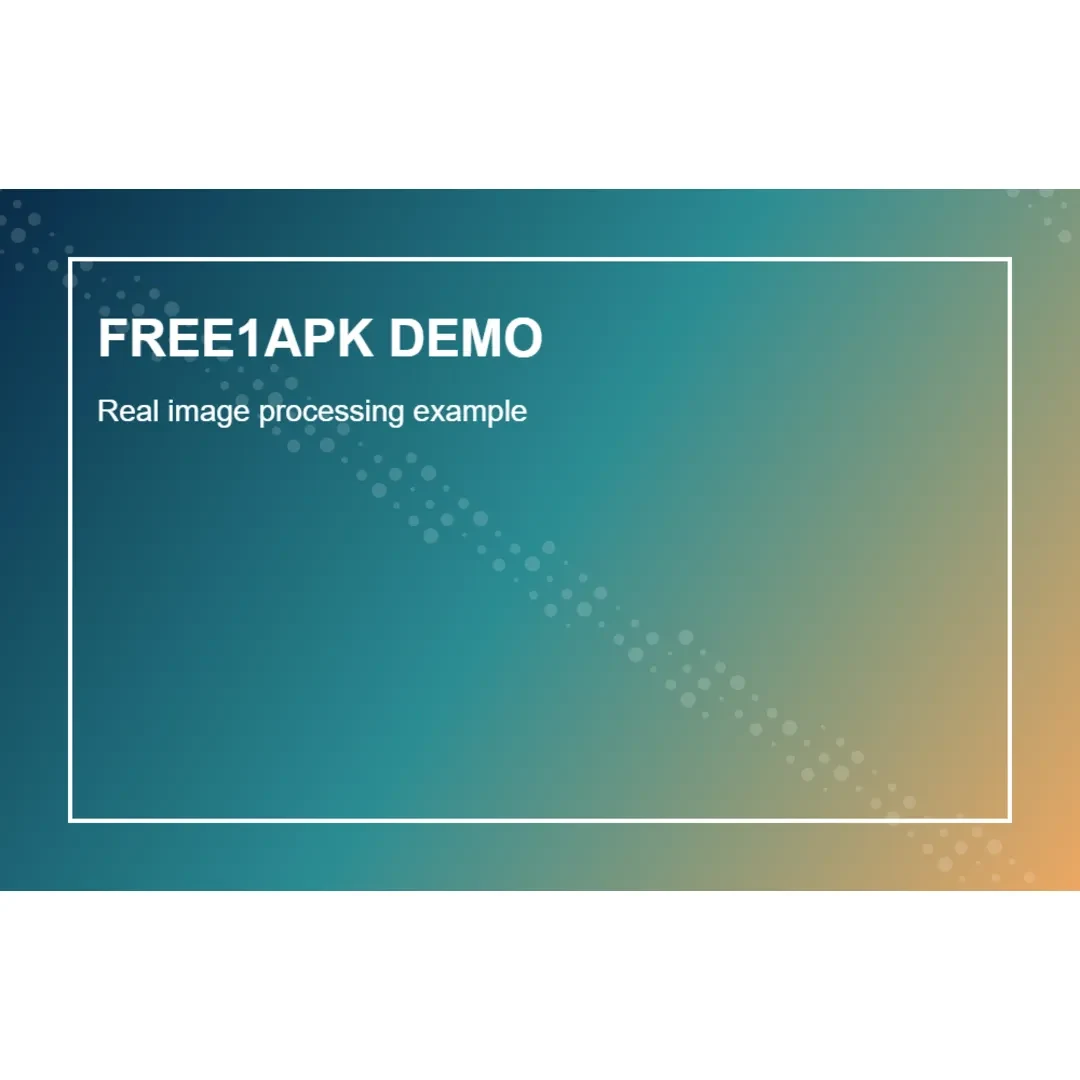
The original recorded image was 689.8 KB. The downloaded output was 17.6 KB and 1080 by 1080 pixels. These are measured results of this one demonstration, not guaranteed savings or quality for other images.
Important Limits and Tradeoffs
Pad retains the original composition but can add blank space. Center crop fills the canvas but can remove text or subjects at its edges. Browser re-encoding can change quality and file size.
Frequently Asked Questions
Will the tool automatically know the current platform requirements? No; presets are starting sizes. Does Pad cut off the source image? It keeps the full image with surrounding canvas space. Can Center crop remove details? Yes.
Try the Interactive Tool
The real Free1APK tool below is interactive. Use your own allowed image, configure the controls, process it locally, and inspect the downloaded result before using it on a website or social post.