Learn to change the dimensions of a still image in your browser. The Image Resizer supports JPG, PNG and WebP; preserve aspect ratio to avoid stretched subjects, and check the actual downloaded file.
Step-by-Step Instructions
Step 1 Choose a Real Image
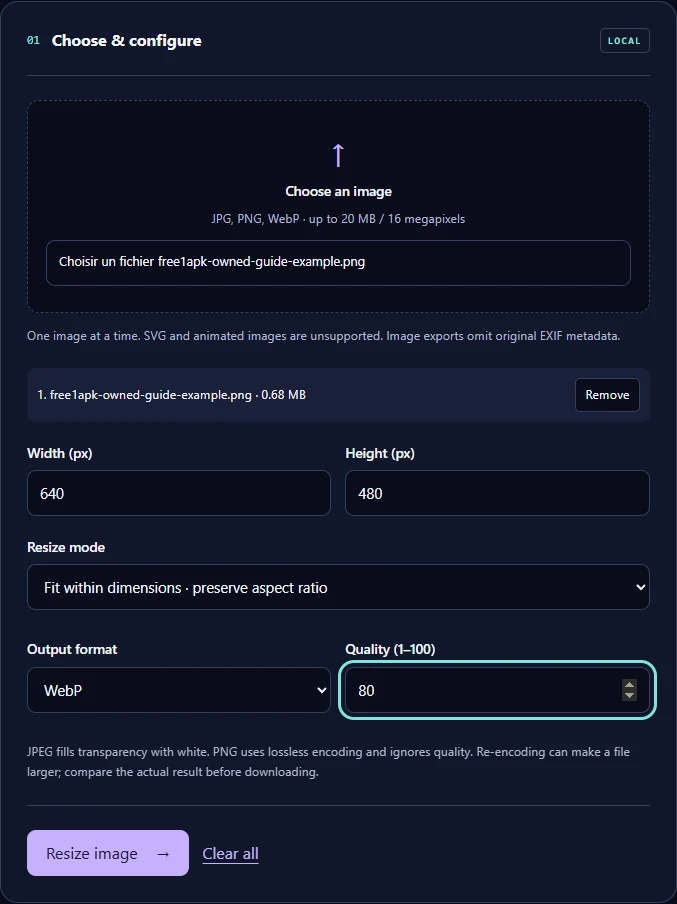
Open the linked tool and select a still JPG, PNG or WebP image. This tool operates in your browser, one image at a time. Use a file you own or have permission to process.
Step 2 Set Dimensions and Aspect Ratio
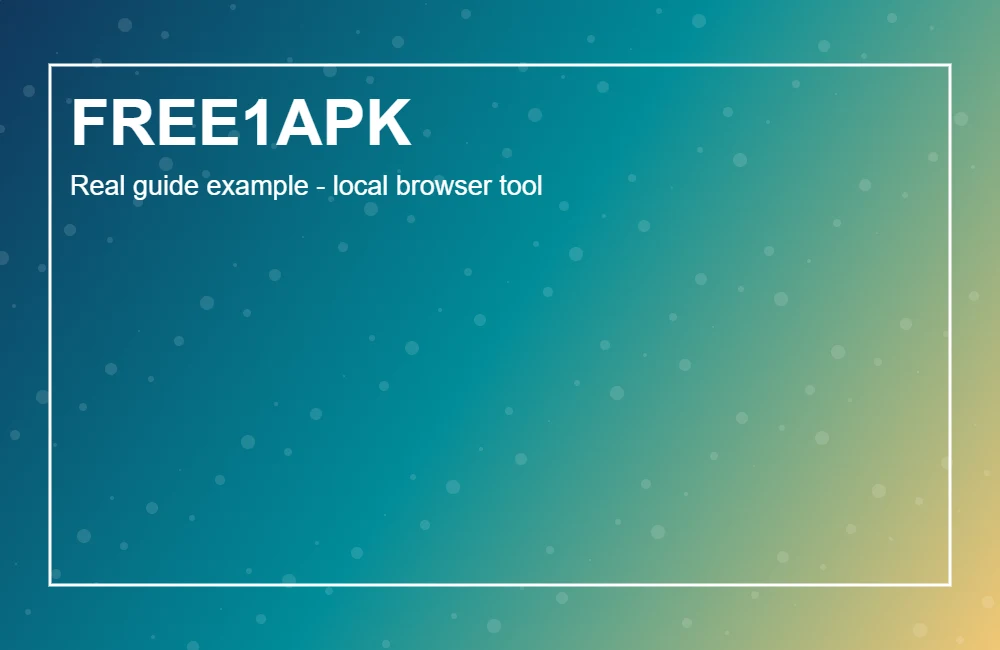
Set Width (px) to 640 and Height (px) to 480. Choose Fit within dimensions · preserve aspect ratio rather than Exact dimensions · may distort image. With our 1000 by 650 example image, the output fits within the limits without changing the shape of the image.
Step 3 Process the Image
Run the tool and wait for the output panel. If processing fails, check file type, browser support and source-image limits. No remote processing API is necessary.
Actual Before and After
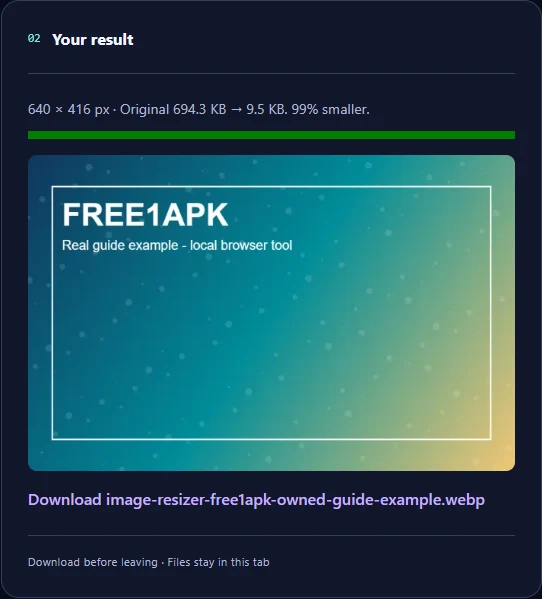
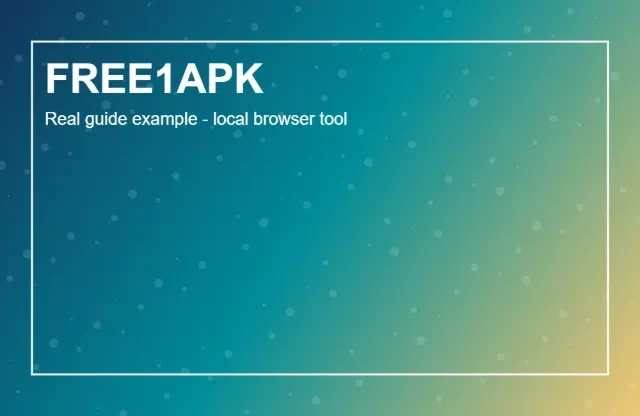
In this real Chrome example, the resized download was 640 by 416 pixels and changed file size from 694.3 KB to 9.5 KB. Your photo may produce different results.
How to Check Quality
Examine small text, diagonals and subjects. Fit preserves proportions but may not produce exactly the entered width and height; Exact dimensions mode produces the entered width and height and may distort images. Small exports cannot recover pixels discarded by downscaling.
Frequently Asked Questions
Does this crop my picture? Fit keeps the image inside the requested bounds rather than cropping. Why are the output dimensions different? Aspect-ratio preservation scales both dimensions together. For conversion without resizing, use Image Format Converter.
Try the Working Tool
Use the interactive Free1APK tool embedded below. Process your own JPG, PNG or WebP image and inspect the downloaded file. You do not need an account or a paid external image-processing API.